
Everything for your StatTrak. In your browser.
Update the firmware, install apps and draw your own screens. You do not install anything.
What is StatTrak?
StatTrak is a small kill counter for airsoft. It mounts on your replica and counts your kills and deaths. It has two buttons, a small display, a buzzer and Bluetooth.
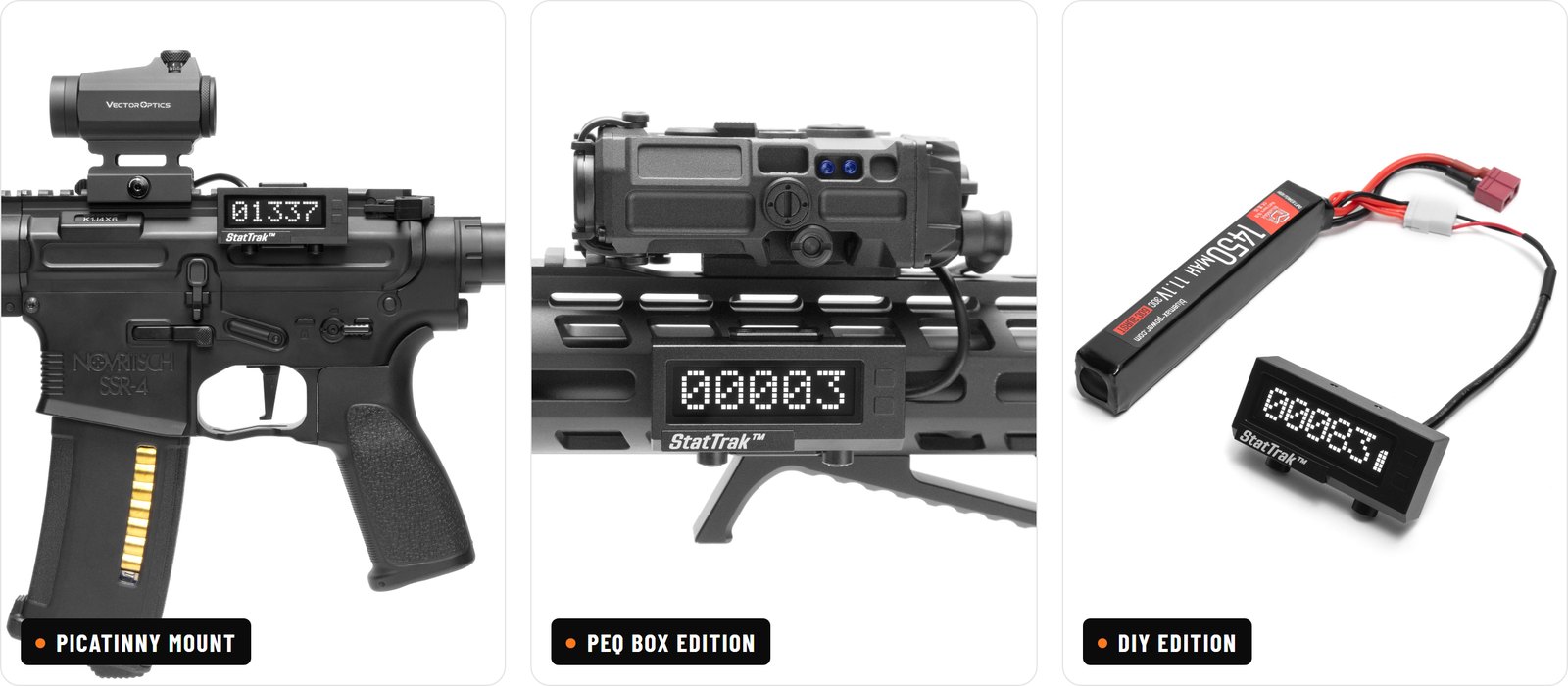
The software inside it, the firmware, is open. You can add apps to it (small games and tools), and with an AI coding tool you can change the firmware itself.
Update the firmware
The Firmware page puts a firmware file on your StatTrak over Bluetooth.
-
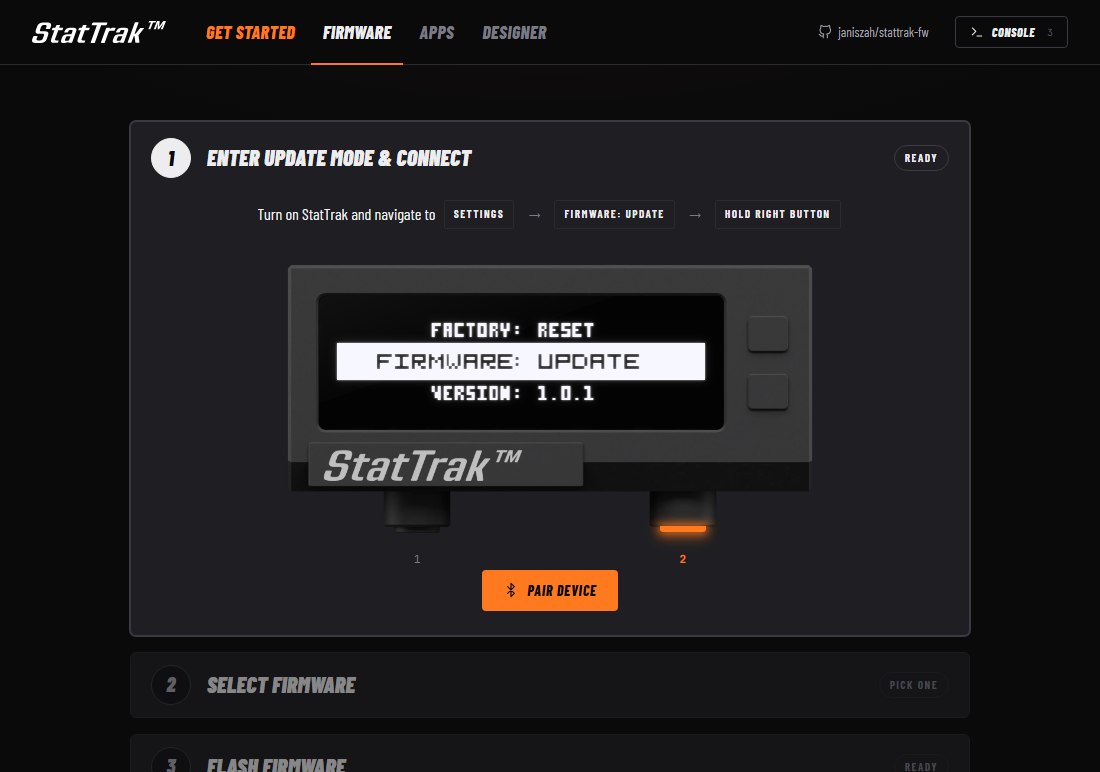 1. Connect. On the StatTrak: Settings, then
Firmware: UPDATE, hold the right button. The display showsFIRMWARE UPDATE. On the page: Pair device, then pickStatTrak. -
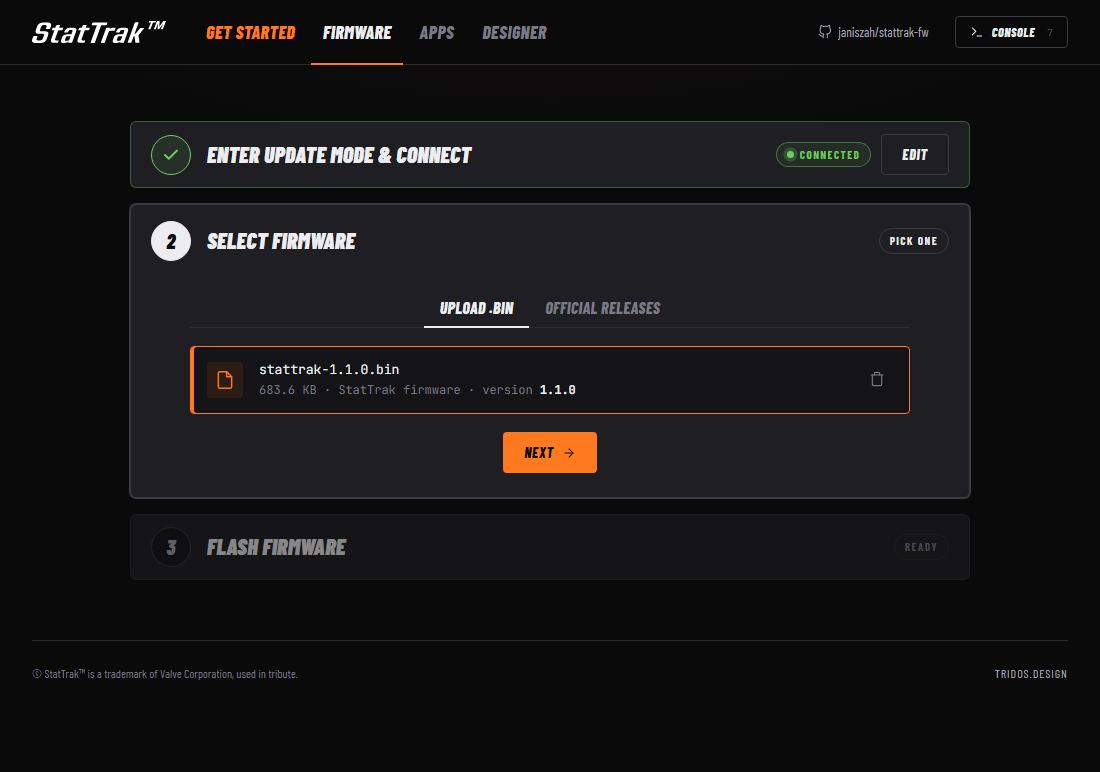 2. Select the file. Pick an official release, or drop a firmware file (
.bin) on the page. The page refuses a file that is not a StatTrak firmware. -
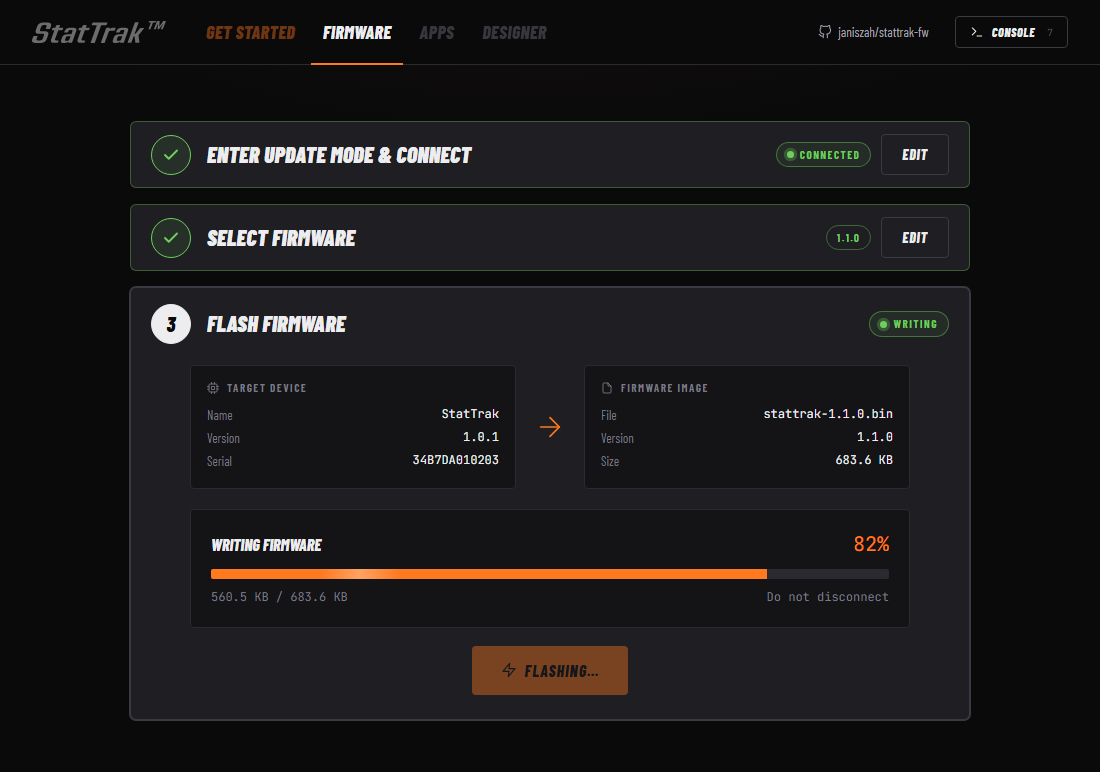 3. Flash. Click Flash firmware and confirm. Keep the device near the computer and keep the page open.
-
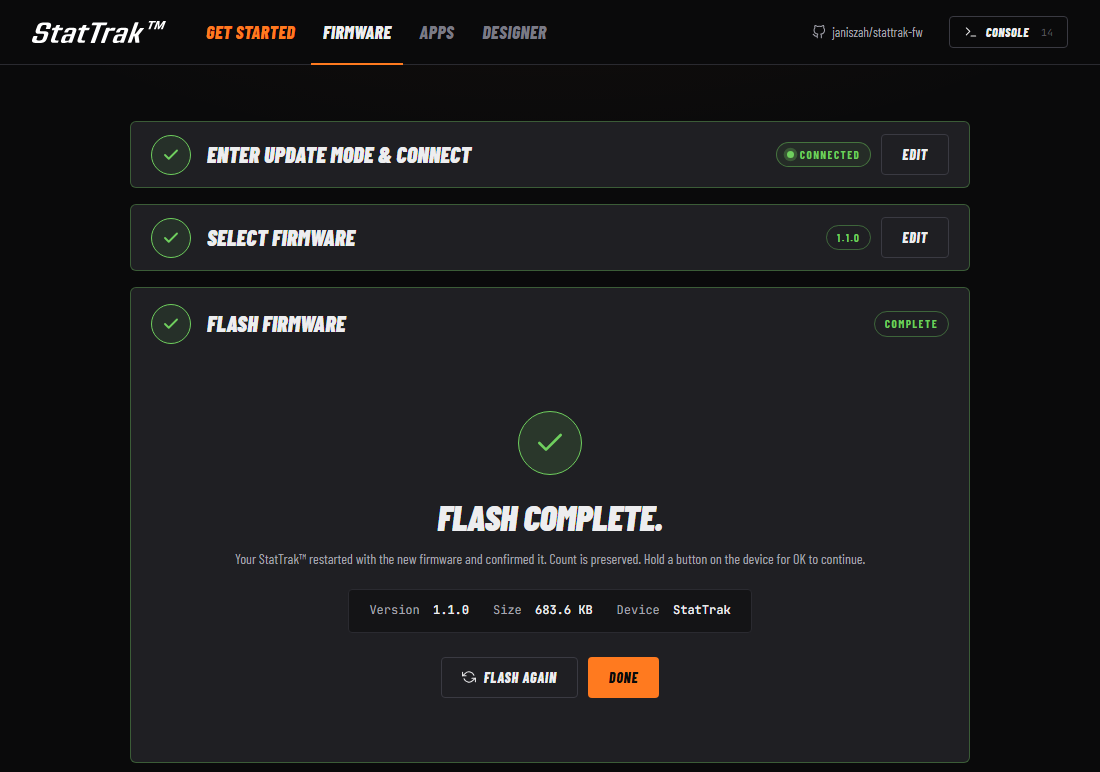 4. Done. The StatTrak restarts and the page confirms the new firmware. The display shows
Complete. Hold a button for OK.
The old firmware stays on the device until the page confirms the new one. If a transfer stops, nothing is lost.
Install apps
An app is a small file (up to 4 KB): a game, a timer, a different counter. It goes on in a few seconds and the firmware stays the same. An app runs in a closed box: it cannot touch the firmware update, Bluetooth or the power.

- On the StatTrak: Settings, then
Apps: SYNC, hold button 2. The display showsAPP SYNC. - On the computer: open Apps, click Connect and pick your StatTrak.
- Click Install next to an app.
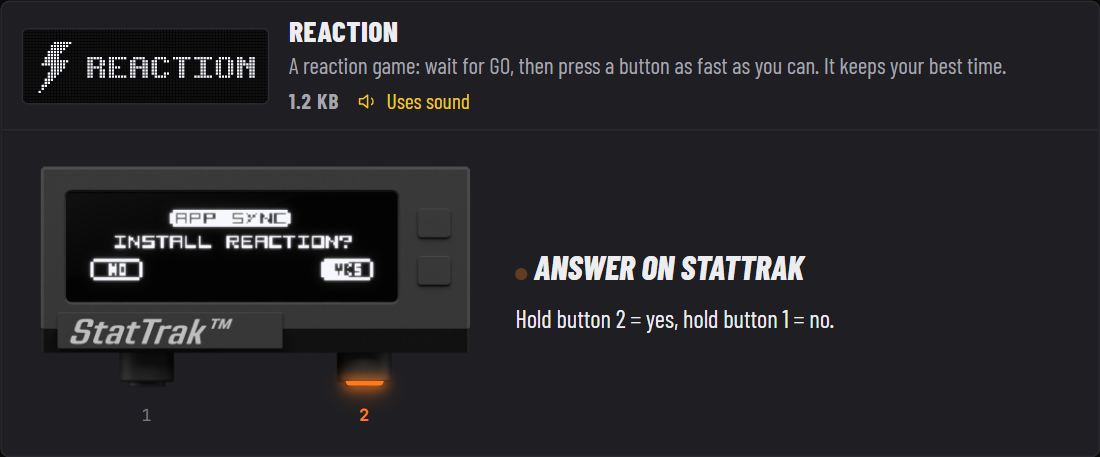
- Answer on the StatTrak. It asks
INSTALL <NAME>?. Hold button 2 for yes, or button 1 for no.
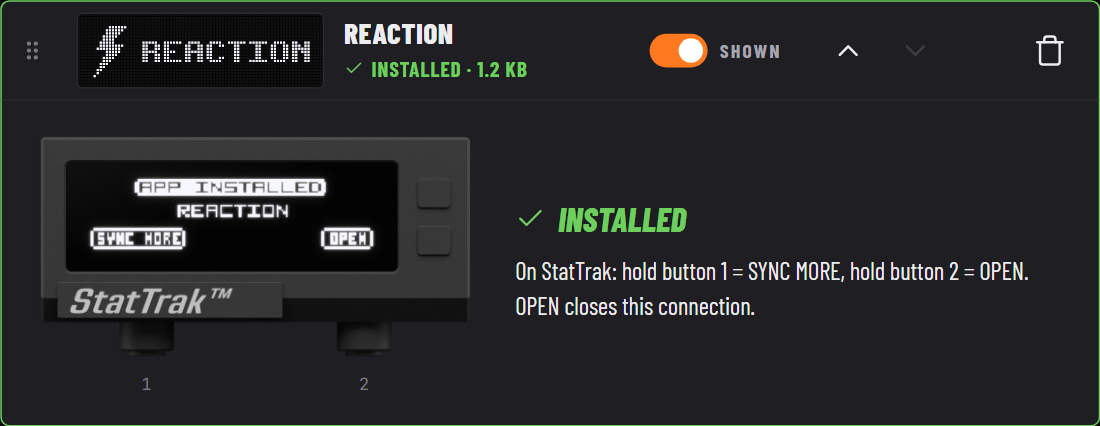
In the same tab you can move, hide and delete apps, change their settings, and give your StatTrak its own
Bluetooth name (for example StatTrak | RED 7). The new name starts the next time you open Apps: SYNC.
Apps need a firmware with the app menu. If the page says Update the firmware first, update the firmware first.
Design a screen
You know exactly how a screen must look? Draw it in the Designer.
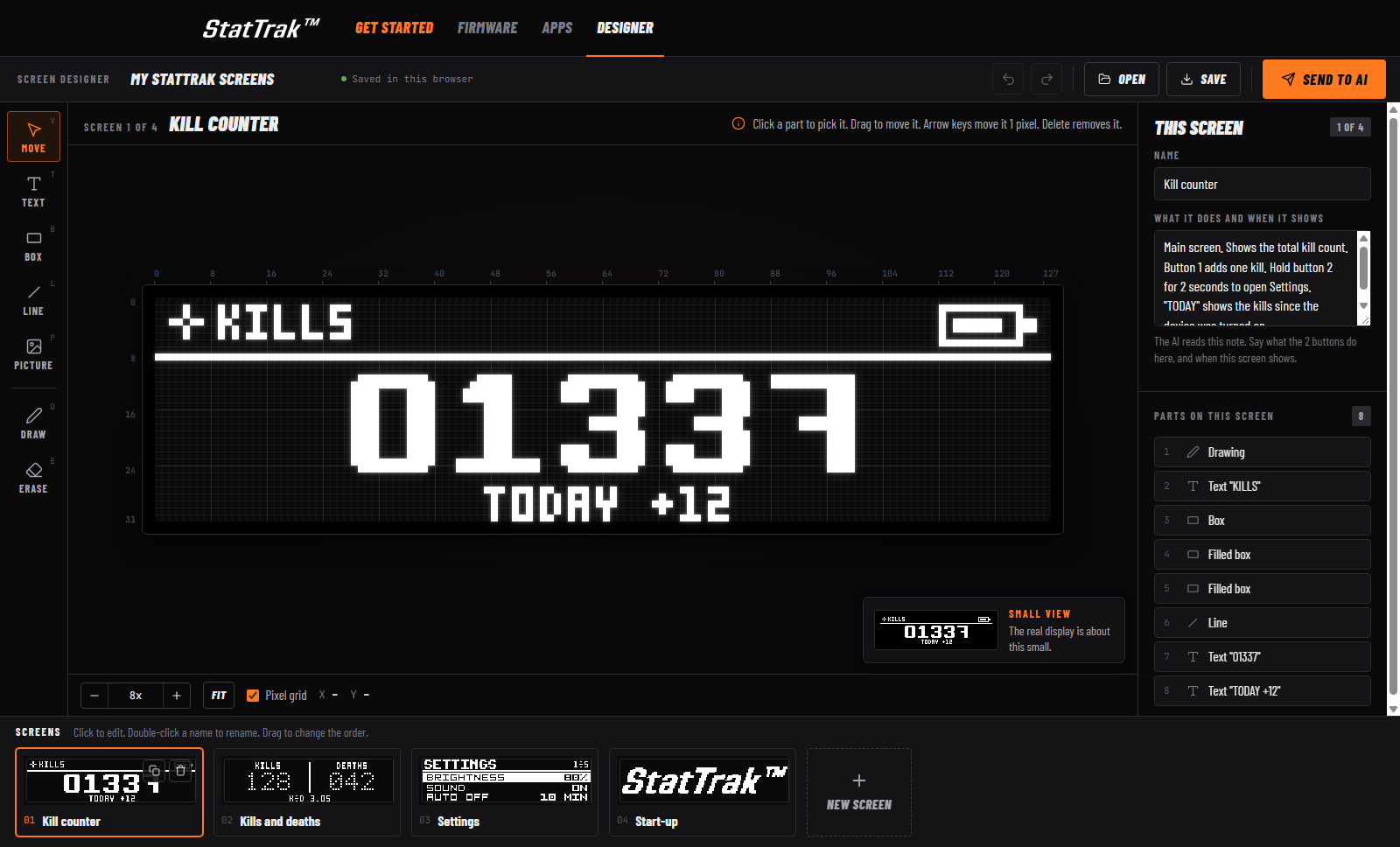
- Real pixels, real fonts. You draw on the 128 × 32 pixels of the device, with its fonts.
- As many screens as you want. Write for each screen what it does: when it shows, and what the two buttons do.
- Your work is safe. The page keeps your work in this browser. Save gives you a file.
- Send to AI. Say in one line what you want, copy the text and paste it into your AI coding tool. It builds exactly what you drew.
Make your own app
You do not have to be a programmer. An AI coding tool writes the app for you, tests it in a simulator of the device and shows you the screens. You decide.
- A computer with Windows, macOS or Linux.
- An AI coding tool that can work on your computer, for example Claude Code, Codex, Cursor, GitHub Copilot (agent mode) or Gemini CLI. A chat website alone is not enough.
- Open your AI coding tool in an empty folder and paste this text:
I have a StatTrak kill counter and I want to make my own app for it. Help me, step by step.

1. Download the firmware project to this computer:
   git clone https://github.com/trakaismikus/stattrak.git
2. Open the folder "stattrak" and read the file AGENTS.md completely. Follow it.
   Start with section 1 "Start here".
3. Ask me before you install anything on my computer. Tell me what it is and how large it is.

The app: (say here what it must do)

I may not be a programmer. Use plain words.
- Say what the app must do. For example: “Count down from 10 minutes and beep at the end.” or “A small game for the break between two rounds.” The device has two buttons, a 128 × 32 display and a buzzer. It has no clock and no internet.
- Look at the screens. The AI tool runs your app in the simulator and shows you the pictures. Ask for changes until you like it.
- Install it. The AI tool gives you a file that ends in
.stapp. Open Apps, connect, click From file and pick the file.
For AI tools and developers: the app language and the rules are in docs/APPS.md of the firmware project.
With the same AI tool you can also change the firmware itself: say what you want instead of an app.
Use the device
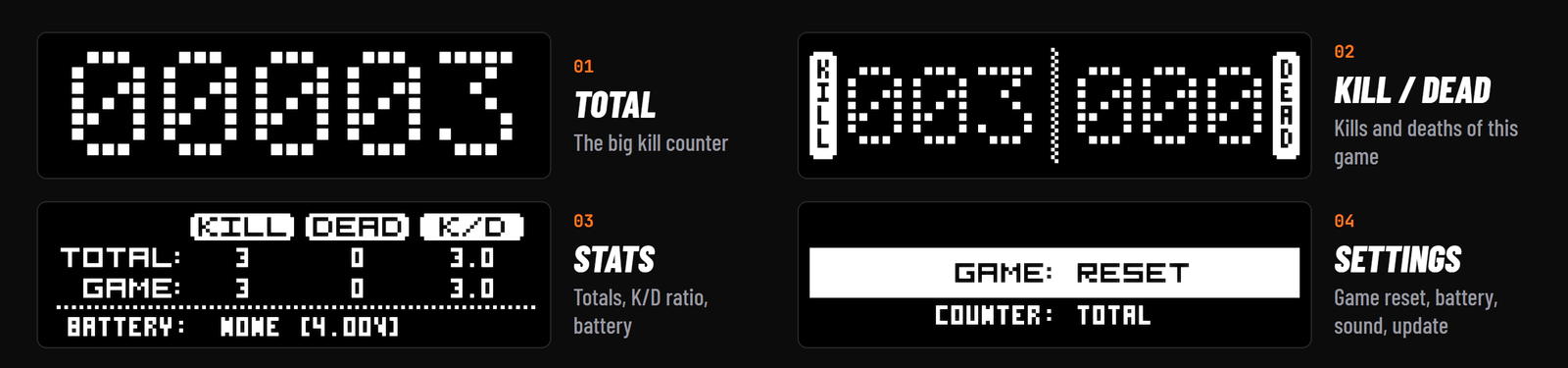
| Do this | Result |
|---|---|
| Hold both buttons | Power on / power off |
| Short press on both buttons | The app menu: KILLS, KILLS + DEAD, STATS, your apps, SETTINGS |
| App menu: button 1 / button 2 | Previous / next app. Both buttons, or wait 3 seconds: open it |
| Total view: short press / long press | +1 kill / −1 kill |
| Settings: short press button 1 / 2 | Up / down |
| Settings: long press button 1 / 2 | Previous / next value, or start the action |
| A button on the display (YES, NO, OK, BACK…) | Hold the round button under it until it fills. A short press does nothing |
| Hold both buttons for 10 seconds while you switch it on | Firmware update mode (the rescue way) |
If something goes wrong
| What you see | What to do |
|---|---|
| The page does not find the StatTrak | Use Chrome, Edge or Opera, and switch on Bluetooth. Open Firmware: UPDATE or Apps: SYNC on the device first |
Error, or the transfer stops | Nothing is lost. The old firmware is still there. Start again |
Verifying... does not go away | Switch the device off (hold both buttons). It starts with the old firmware again |
| The device does not work as before | Hold both buttons for 10 seconds while you switch it on. The update mode opens. Install the official firmware |